 Skylolerr
Energy Flow Mapper
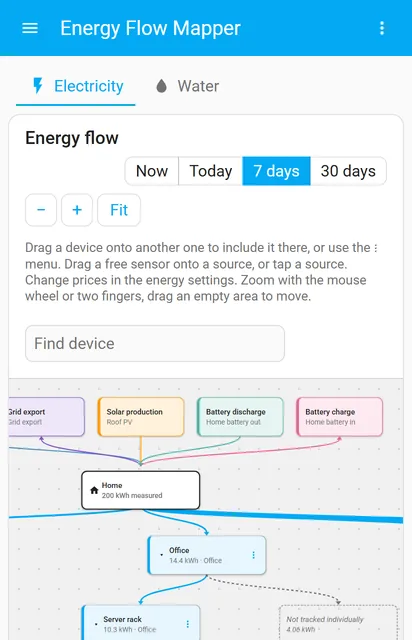
A visual drag-and-drop editor for the Home Assistant energy dashboard. Not another energy card: Energy Flow Mapper shows your energy configuration as a diagram – sources at the top, your home in the middle, devices below – and lets you change it by drag and drop.
- Drag & drop
- Electricity & water
- Dashboard card
- Backups

See it in action
Features
See your setup

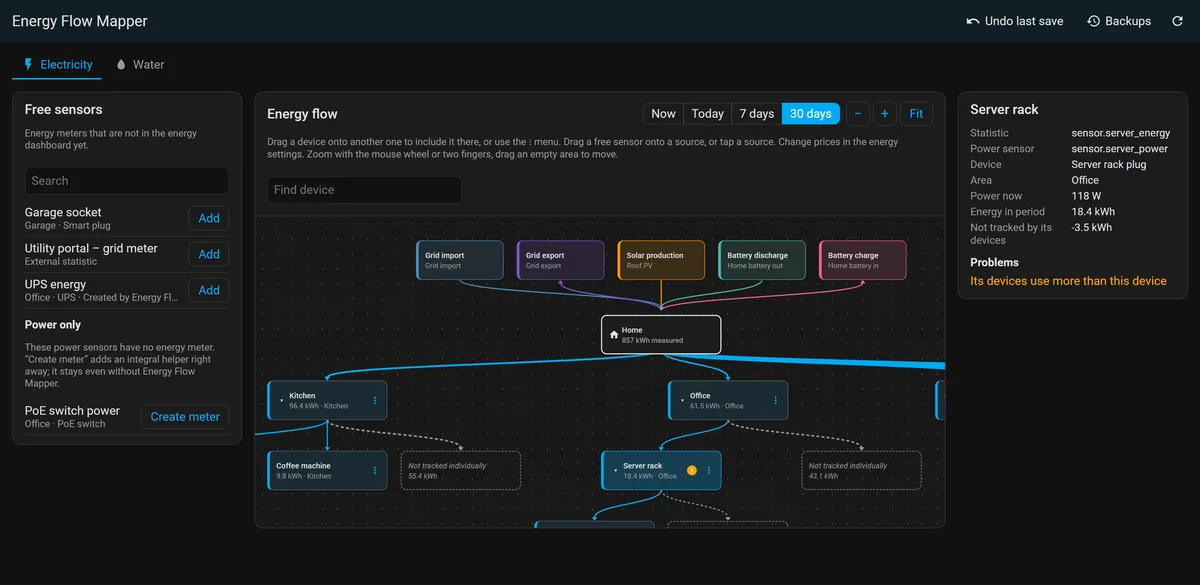
- Diagram of your energy dashboard – sources, Home and devices, arranged automatically; zoom and pan with mouse, touch or trackpad.
- Live power and energy per period – now, today, 7 or 30 days, including what is not tracked individually.
- Plausibility warnings when sub-devices used clearly more than their parent – usually a wrong assignment.
- Find a device in big diagrams.
Change it safely

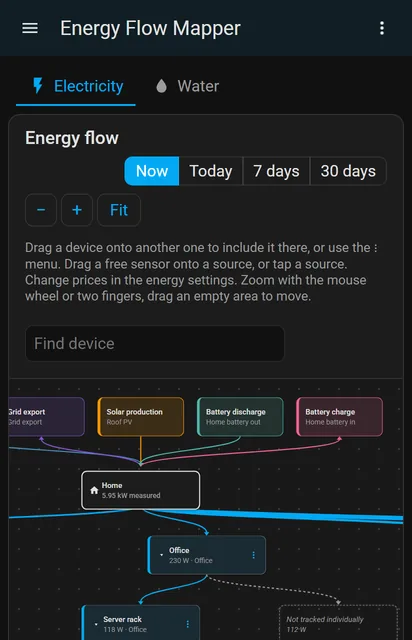
- Drag and drop (or the ⋮ menu on phones) – include a device in another one, rename or remove it.
- Sources – drop a sensor onto grid import, grid export, solar, battery or water. Prices stay as they are.

- Free sensors – meters and external statistics not in the dashboard yet, added with one drag.
- Create meter – turns a power or flow sensor into an ordinary integral helper.
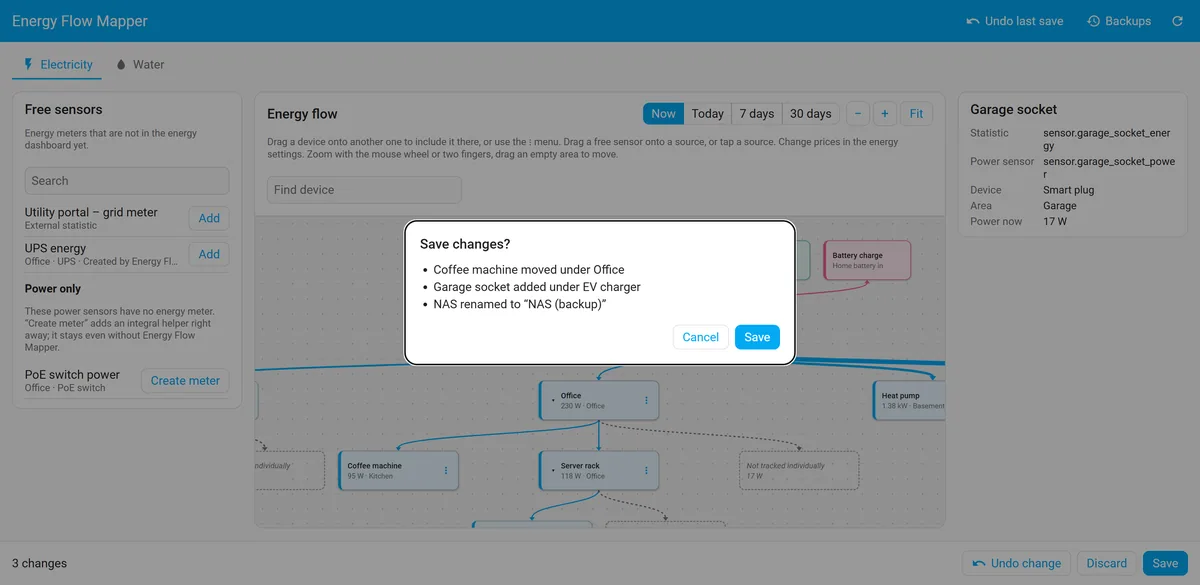
- Draft, check, save – with undo, a list of changes and a backup before every write.
Everywhere
- Dashboard card – the same tree, read-only, on any dashboard and for every user.
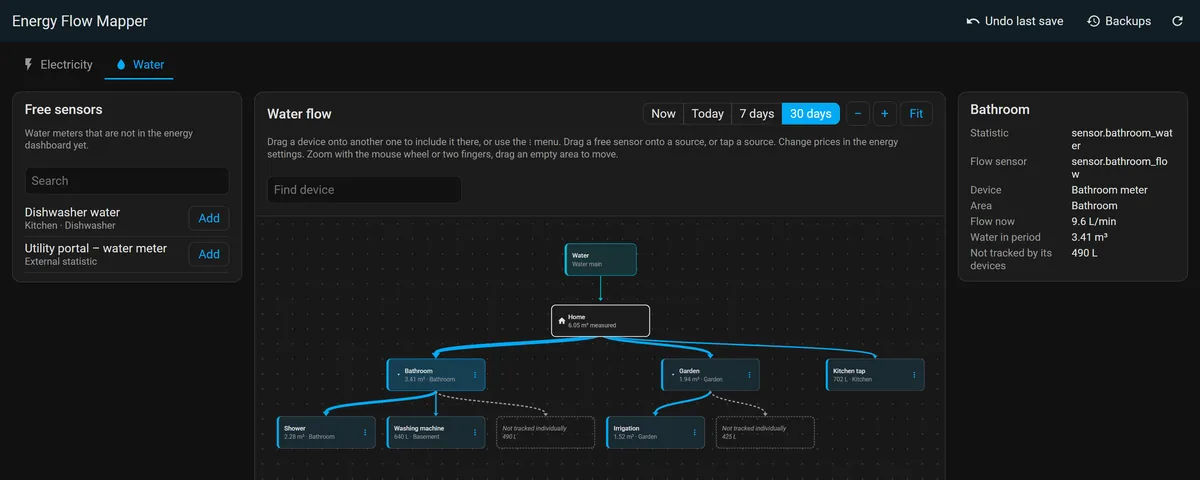
- Water tab – litres and m³, or gallons with US units.
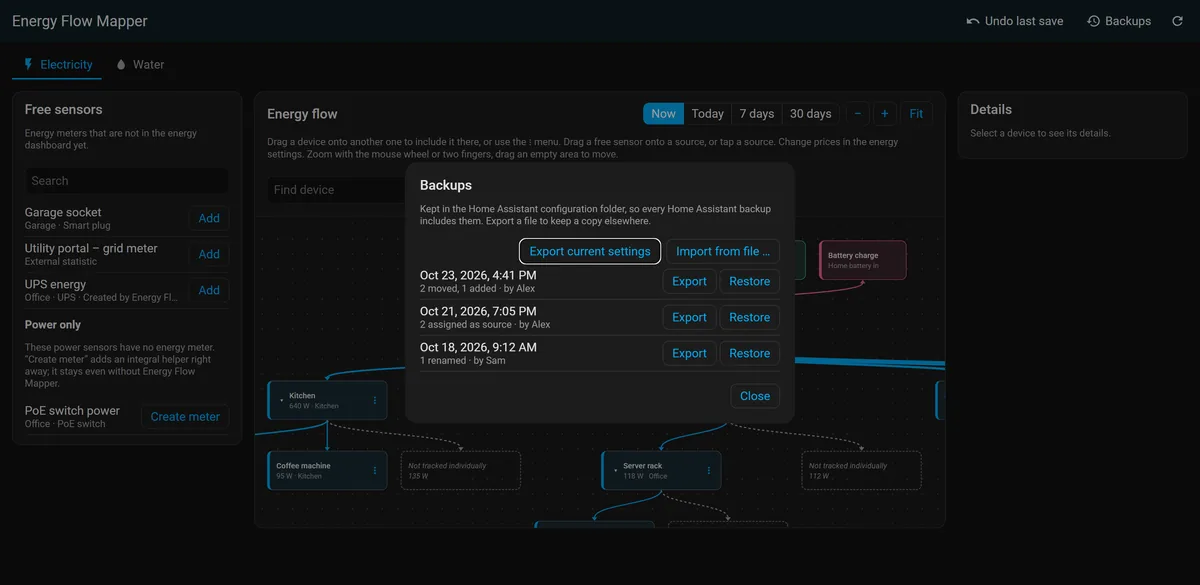
- Backups, export and import – restore any earlier state or keep a copy elsewhere.
- English, German, French and Italian, light and dark theme, phone layout.
Dashboard card
The card shows the device tree of electricity or water on any dashboard. It only shows – editing stays in the panel – and every user who can see the dashboard sees it, like Home Assistant's own energy dashboard. Tap a device to open its history. Add it in the dashboard editor: Add card → Energy Flow Mapper; there is no resource to add.

In YAML:
type: custom:energy-flow-mapper-card
kind: electricity      # or water
period: today          # now, today, week or month
root: sensor.kitchen_energy   # optional: only this device and everything below it
title: Kitchen         # optional; an empty title hides the header
show_sources: true     # sources above Home (not with root)
show_untracked: true   # blocks for what is not tracked individually
Screenshots
Requirements and installation
Beta. Breaking changes are possible before 1.0. Every save keeps a backup of your previous energy settings, so you can always go back.
Requirements
- Home Assistant 2026.10.0 or newer, with the energy dashboard (part of the default configuration).
- HACS for the installation (or a manual copy, see below).
- An admin user for the panel. The dashboard card works for every user.
Installation
-
Add it to HACS
Click Open in HACS – My Home Assistant opens the repository in your own Home Assistant – and select Download.
Or add it as a custom repository by hand:
- Open HACS in the sidebar.
- Open the ⋮ menu at the top right and choose Custom repositories.
- Enter
https://github.com/Skylolerr/ha-energy-flow-mapper, choose the type Integration and select Add. - Search for Energy Flow Mapper in HACS and select Download.
-
Restart Home Assistant
Settings → System → the power button at the top right → Restart Home Assistant.
-
Set it up
Settings → Devices & services → Add integration → Energy Flow Mapper, or use the button. The setup itself does not change your energy settings.
-
Open the panel
Energy Flow Mapper appears in the sidebar for admins. Nothing is written until you select Save.
Manual installation: copy custom_components/energy_flow_mapper from the latest release into the custom_components folder of your Home Assistant configuration and restart Home Assistant.
Frequently asked questions
How do I add devices to the Home Assistant energy dashboard?
Open Energy Flow Mapper in the sidebar and drag an energy sensor from Free sensors into the diagram, or use Add. Free sensors lists every energy meter and external statistic that is not in the energy dashboard yet. Nothing is written until you press Save, and you see the list of changes first.
How do I set an upstream device ("included in") in the energy dashboard?
Home Assistant can treat the consumption of one device as part of another one, for example a coffee machine behind a kitchen sub-meter. In Energy Flow Mapper you drag the coffee machine onto the kitchen block; valid targets light up. On a phone, use the ⋮ menu → Move to …. The diagram then shows how much of the kitchen's consumption is not tracked individually.
Is Energy Flow Mapper just another energy card?
No. Energy cards and Sankey charts show the energy dashboard; Energy Flow Mapper edits it. It changes Home Assistant's own energy settings, which the energy dashboard and every energy card then use. It also comes with a read-only dashboard card of its own.
Can Energy Flow Mapper break my energy settings?
Every save, restore and import stores a backup of the previous settings first – 20 by default, up to 100. Undo last save or Backups → Restore brings them back, and you can export the settings as a JSON file. Before saving, the draft is checked for loops, missing parents, duplicates and sensors used twice, and Home Assistant's own checks run as well. Prices and other fields that Energy Flow Mapper does not edit are kept as they are.
How do I add a power sensor (W) to the energy dashboard?
The energy dashboard needs energy in kWh, not power in W. For a power sensor without a meter, choose Power only → Create meter: Energy Flow Mapper creates an ordinary integral helper that adds up the energy and puts it in the diagram. The helper keeps working without Energy Flow Mapper. Flow sensors such as L/min work the same way in the Water tab.
Does Energy Flow Mapper support water and gas?
Water yes: the Water tab has its own devices, meters and free sensors, in litres and m³, or gallons with US units. Gas sources are shown, but Home Assistant has no gas devices, so there is nothing to arrange.
Which Home Assistant version does Energy Flow Mapper need?
Home Assistant 2026.10.0 or newer. The panel is for admins; the dashboard card works for every user who can see the dashboard.
HACS does not find Energy Flow Mapper. What can I do?
Use the Open in HACS button on this page, or add the repository by hand: in HACS open the ⋮ menu, choose Custom repositories, enter https://github.com/Skylolerr/ha-energy-flow-mapper with the type Integration and select Add. Then search for Energy Flow Mapper, download it and restart Home Assistant.
The card shows "Custom element doesn't exist". What is wrong?
Reload the page. Right after installing or updating, the browser still has the old Home Assistant page in its cache, and the card's loader is part of that page.
Is Energy Flow Mapper free, and does it need the cloud?
It is free and open source under the MIT license. There is no account and no cloud service; everything runs inside your Home Assistant.
Links
- GitHub repositorySource code and full documentation
- ReleasesDownload and release notes
- IssuesReport a bug or suggest a feature
- ChangelogWhat changed in each version
Like Energy Flow Mapper? It is free and open source. If it saves you time, you can support its development with a coffee.
Buy me a coffee